 damian_site
In Part 1 I got the foundation working: tmux, Neovim, and lazygit all talking to each other with one consistent set of keybindings. This time I wanted to make the whole thing look the way I actually want to stare at for hours, a consistent Gruvbox Light theme across the entire stack.
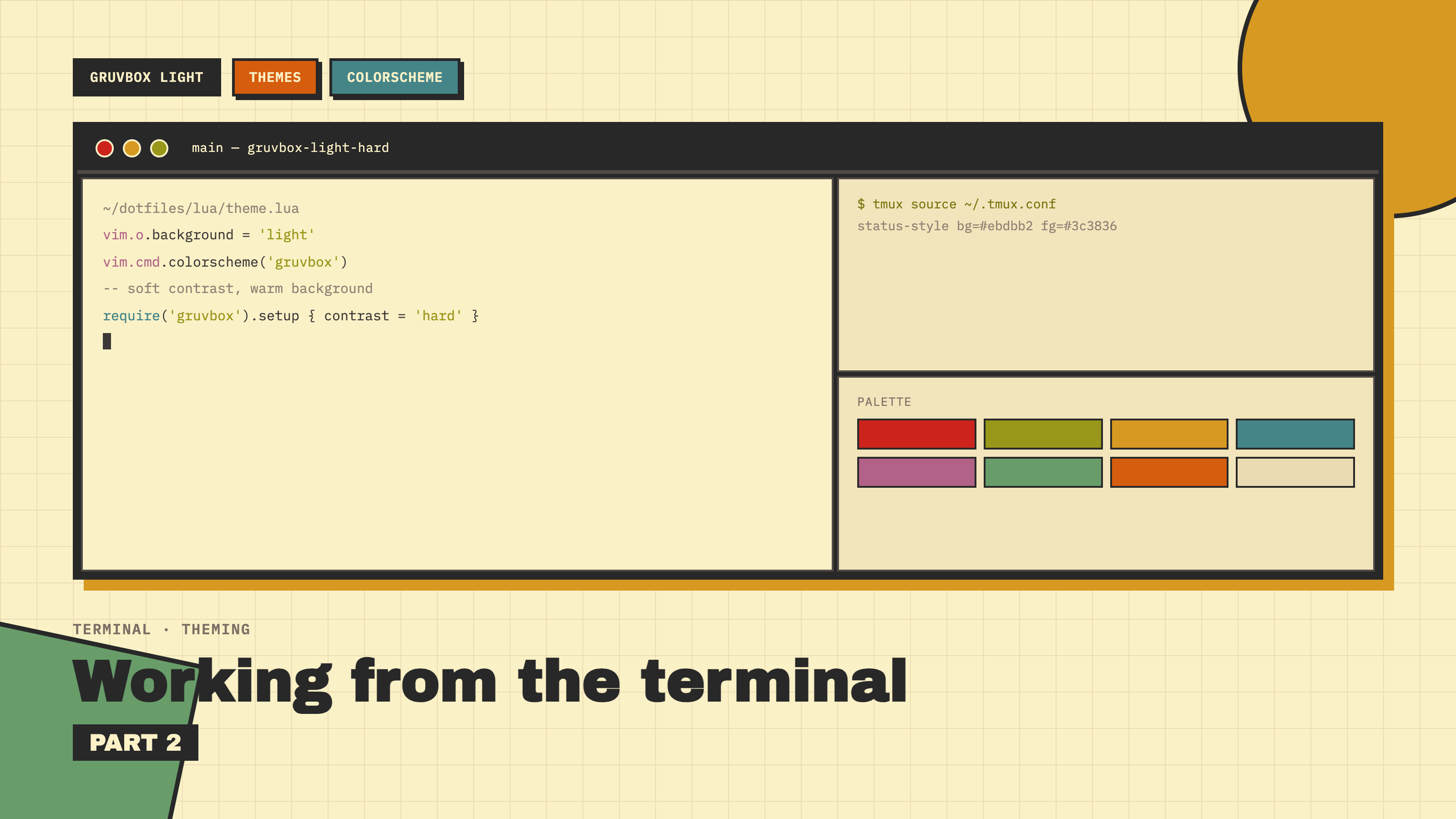
On VSCode I used Solarized Light, a warm, comfortable theme, easy to read for people who, like me, suffer astigmatism. Gruvbox Light is the closest equivalent in the Neovim world, and I’d already used it in other places, so it made sense to standardize on it everywhere.
“Everywhere” turned out to be four separate, independent layers that don’t automatically sync with each other, worth calling out explicitly since it’s easy to assume changing one changes them all:
- Neovim itself, via the
gruvbox.nvimcolorscheme. - tmux’s status bar, the bar at the bottom showing session/window names.
- Terminal.app, the actual window background, text, cursor, and ANSI colors.
- Claude Code’s own UI theme, which turned out to be completely separate from all of the above.
Neovim: gruvbox.nvim
Added the same way as every other plugin in this fork, via vim.pack (see Part 1 if vim.pack is new to you):
vim.pack.add { gh 'ellisonleao/gruvbox.nvim' }
Applied with:
vim.o.background = 'light'
vim.cmd.colorscheme 'gruvbox'
To preview without restarting, :colorscheme gruvbox. To fully reload the plugin, :lua vim.pack.update().
tmux status bar: manual styling first, then doing it properly with TPM
First attempt, manual: I hardcoded Gruvbox hex values directly into the status-bar options in ~/.tmux.conf. It worked, but it wasn’t the “proper” way, no plugin manager involved, so nothing to update, and every value hand-maintained.
So I switched to TPM (Tmux Plugin Manager) and used a real theme plugin instead.
Install TPM:
git clone https://github.com/tmux-plugins/tpm ~/.tmux/plugins/tpm
Add the plugin declarations to ~/.tmux.conf, near the other settings:
set -g @plugin 'tmux-plugins/tpm'
set -g @plugin 'egel/tmux-gruvbox'
set -g @tmux-gruvbox 'light'
And, as the very last lines of the file, TPM requires this:
run '~/.tmux/plugins/tpm/tpm'
Reload the config, then, from inside a tmux session, install the plugins with TPM’s own keybind:
Ctrl+a then Shift+I
(capital I, TPM’s install keybind.)
Once tmux-gruvbox was confirmed working, I deleted the earlier manual status-bar styling lines, they’d otherwise conflict with the plugin’s own styling.
One scope note worth being explicit about: tmux-gruvbox only styles the tmux status bar. It has no effect on the terminal application’s own background color, or on the shell prompt theme. Those are separate layers, next up.
Terminal.app: no built-in profile was close enough
After tmux and Neovim were both Gruvbox Light, the actual Terminal.app window was still black, because it was running Terminal’s built-in “Pro” profile, which is unrelated to both tmux and Neovim theming entirely.
I checked whether a built-in profile would get me close enough. Terminal.app ships only: Basic, Grass, Homebrew, Man Page, Novel, Ocean, Pro, Red Sands, Silver Aerogel. Novel was the closest, light, warm/cream background, but on inspection it didn’t match Gruvbox’s specific palette well enough.
So I built a custom profile manually:
- Terminal → Settings → Profiles →
+to duplicate a profile, renamed it Gruvbox Light. - Text tab, set background, foreground, cursor, and selection colors.
- Same tab, set all 16 ANSI colors (normal + bright) to Gruvbox Light values.
- Set the new profile as Default.
Issue: no hex input field visible in the color picker
The macOS color picker doesn’t show a hex field by default. Fix: click the second tab icon (the sliders icon) to open “Color Sliders”, then make sure the dropdown is set to RGB Sliders, a hex field appears there directly on modern macOS. On older macOS versions without a hex field, you’ll need to enter RGB (0–255) values manually instead.
Gruvbox Light color reference (hard contrast)
| Element | Hex |
|---|---|
| Background | #f9f5d7 |
| Foreground / text | #3c3836 |
| Selection | #d5c4a1 |
| ANSI | Normal | Bright |
|---|---|---|
| Black | #fbf1c7 |
#928374 |
| Red | #9d0006 |
#cc241d |
| Green | #79740e |
#98971a |
| Yellow | #b57614 |
#d79921 |
| Blue | #076678 |
#458588 |
| Magenta | #8f3f71 |
#b16286 |
| Cyan | #427b58 |
#689d6a |
| White | #3c3836 |
#7c6f64 |
Claude Code: still showing a black background on message submit
Symptom: with Terminal, tmux, and Neovim all matching Gruvbox Light, Claude Code’s own interface, running inside that same terminal, still flashed a black background every time I sent a message.
Cause: Claude Code has its own internal /theme setting, completely separate from the terminal’s color profile, tmux, or Neovim. It defaults to dark and doesn’t automatically detect or follow the terminal’s background color unless you tell it to.
Fix, from inside a Claude Code session:
/theme
This opens an interactive picker, select light, or auto to have it detect the terminal’s light/dark background and follow OS-level appearance changes automatically going forward.
Going further: a real Gruvbox Light custom theme, not just light mode
/theme light gets Claude Code’s own background/foreground close, but it’s still a stock light theme, not actually Gruvbox: diff highlighting, permission prompts, autocomplete suggestions, and the message-submit background all keep their default accent colors, which don’t match the rest of the stack.
Turns out Claude Code supports fully custom themes, and they do let you override those exact elements, it just isn’t obvious from the picker alone.
From /theme, pick New custom theme…, base it on light, give it a name. That creates a JSON file at ~/.claude/themes/<name>.json with an empty overrides object:
{
  "name": "damian-theme",
  "base": "light",
  "overrides": {}
}
Every key in overrides maps a UI element to a hex color, and it accepts far more than the picker exposes: diff colors, permission/suggestion accents, message backgrounds, even the per-subagent color set. Editing the file directly (any text editor, Claude Code picks it up on next /theme or restart) let me map every one of those keys onto the actual Gruvbox Light palette from the table above, instead of the defaults.
Two things I got wrong on the first pass, worth calling out since they weren’t obvious from the key names alone:
- Diff word-highlights need a mid-tone, not the full accent color.
diffAddedWord/diffRemovedWordrender as a solid chip with dark text drawn on top, no separate text-color override exists for them. Using Gruvbox’s actual green/red accents as the chip color made the text on top nearly unreadable (dark-on-dark). Blending each accent about halfway toward the background fixed it, saturated enough to stand out from the pastel diff-line background, light enough that dark text stays legible. - Warm pastels read as “salmon” against a cream background, even when they aren’t red. I tried the message-background color in tan, then a neutral Gruvbox gray, then a pale amber, and all three looked like an error state at a glance, purely because Gruvbox’s cream backdrop pulls any warm blend toward peach. Gruvbox’s own blue accent, lightened, was the fix: it’s a legitimate part of the 8-color Gruvbox set (not a foreign color), and being cool instead of warm, it can’t be mistaken for the red/green already used for diffs and errors.
Final ~/.claude/themes/damian-theme.json:
{
  "name": "damian-theme",
  "base": "light",
  "overrides": {
    "autoAccept": "#8f3f71",
    "autoAcceptShimmer": "#b16286",
    "skill": "#8f3f71",
    "bashBorder": "#b16286",
    "claude": "#d65d0e",
    "claudeShimmer": "#fe8019",
    "claudeBlue_FOR_SYSTEM_SPINNER": "#076678",
    "claudeBlueShimmer_FOR_SYSTEM_SPINNER": "#458588",
    "permission": "#076678",
    "permissionShimmer": "#458588",
    "planMode": "#427b58",
    "ide": "#458588",
    "promptBorder": "#7c6f64",
    "promptBorderShimmer": "#928374",
    "text": "#3c3836",
    "inverseText": "#f9f5d7",
    "inactive": "#7c6f64",
    "inactiveShimmer": "#928374",
    "subtle": "#bdae93",
    "suggestion": "#076678",
    "remember": "#8f3f71",
    "background": "#f9f5d7",
    "success": "#79740e",
    "error": "#9d0006",
    "warning": "#b57614",
    "merged": "#8f3f71",
    "warningShimmer": "#d79921",
    "diffAdded": "#d8e4b0",
    "diffRemoved": "#f2d6cd",
    "diffAddedDimmed": "#eef0da",
    "diffRemovedDimmed": "#f8e8e2",
    "diffAddedWord": "#d3d17a",
    "diffRemovedWord": "#eab3a8",
    "red_FOR_SUBAGENTS_ONLY": "#cc241d",
    "blue_FOR_SUBAGENTS_ONLY": "#458588",
    "green_FOR_SUBAGENTS_ONLY": "#98971a",
    "yellow_FOR_SUBAGENTS_ONLY": "#d79921",
    "purple_FOR_SUBAGENTS_ONLY": "#b16286",
    "orange_FOR_SUBAGENTS_ONLY": "#d65d0e",
    "pink_FOR_SUBAGENTS_ONLY": "#b16286",
    "cyan_FOR_SUBAGENTS_ONLY": "#689d6a",
    "professionalBlue": "#458588",
    "chromeYellow": "#d79921",
    "clawd_body": "#d65d0e",
    "clawd_background": "#f9f5d7",
    "userMessageBackground": "#c9dde0",
    "userMessageBackgroundHover": "#b3cdd1",
    "composerSidebarBackground": "#f2e5bc",
    "selectionBg": "#d5c4a1",
    "bashMessageBackgroundColor": "#ebdbb2",
    "memoryBackgroundColor": "#d5c4a1",
    "rate_limit_fill": "#458588",
    "rate_limit_empty": "#d5c4a1",
    "fastMode": "#fe8019",
    "fastModeShimmer": "#d65d0e",
    "effortUltra": "#8f3f71",
    "briefLabelYou": "#076678",
    "briefLabelClaude": "#d65d0e",
    "rainbow_red": "#cc241d",
    "rainbow_orange": "#d65d0e",
    "rainbow_yellow": "#d79921",
    "rainbow_green": "#98971a",
    "rainbow_blue": "#458588",
    "rainbow_indigo": "#076678",
    "rainbow_violet": "#b16286",
    "rainbow_red_shimmer": "#fb4934",
    "rainbow_orange_shimmer": "#fe8019",
    "rainbow_yellow_shimmer": "#fabd2f",
    "rainbow_green_shimmer": "#b8bb26",
    "rainbow_blue_shimmer": "#83a598",
    "rainbow_indigo_shimmer": "#458588",
    "rainbow_violet_shimmer": "#d3869b"
  }
}
One caveat that’s still real: the code-block syntax highlighter (shown as “Syntax theme: GitHub” at the bottom of the picker) is a separate system from these theme overrides and doesn’t have a Gruvbox option. Toggle it off with ctrl+t if the mismatch bothers you.
Wrapping up
The main takeaway: “theming my terminal” isn’t one setting, it’s four independent ones (Neovim, tmux, the terminal emulator, and any TUI apps running inside it, like Claude Code), and each needs to be told about the theme separately. Worth checking all of them individually rather than assuming one change propagates everywhere.
With this done, Terminal, tmux, Neovim, and Claude Code all now share the same Gruvbox Light look, consistent, warm, and comfortable to stare at for long stretches.
Versions
- macOS: 26.5
- tmux: 3.7b
- Neovim: v0.13.0-dev
- gruvbox.nvim: latest via
vim.pack - tmux-gruvbox: latest via TPM
- Claude Code: latest, with
/themesupport
Like this content? Subscribe to my newsletter to receive more tips and tutorials about AI, Data Engineering, and automation.