Extracting data from modern websites can be a challenge. Developers typically resort to a few standard tactics:
- Parsing the raw HTML structure (brittle and prone to breaking).
- Automating a full browser with tools like Selenium or Playwright.
- Digging into the Network tab to intercept the underlying API traffic.
I almost always prefer the third option. Discovering the direct data source is cleaner and more reliable.
However, the manual process is tedious. You’re often left clicking through the site while staring at a waterfall of network requests, trying to guess which undocumented endpoint actually holds the data you need. It requires reverse engineering the original developer’s logic, which can eat up hours of your time.
The Solution: Chrome DevTools MCP
I want to show you how to use the Chrome DevTools MCP to help you discover hidden API endpoints on websites. The idea is that using this MCP, you can discover hidden APIs that will then help your coding tool implement a better script to scrape the data.
This is significantly better than just inspecting the HTML or scraping the rendered DOM by force. It helps reduce implementation time for web scrapers because it automates the discovery part, finding those hidden endpoints that contain structured data in JSON format.
Installation
First, let’s look at how to install the MCP in the Gemini CLI (or your coding tool of choice).
You can configure it in your MCP settings file:
{
  "mcpServers": {
    "chrome-devtools": {
      "command": "npx",
      "args": ["-y", "chrome-devtools-mcp@latest"]
    }
  }
}
This configuration tells your AI assistant to spin up a Chrome DevTools instance when needed.
For Gemini CLI, you can install it using the command:
gemini mcp add chrome-devtools npx chrome-devtools-mcp@latest
The Workflow: Scraping NBA Games
To illustrate this, let’s look at an example: scraping the info of the NBA games from their website. As you can see if you use the Network tab of the inspector, there is a large amount of requests. Going through all of them to find the one we need could take hours.
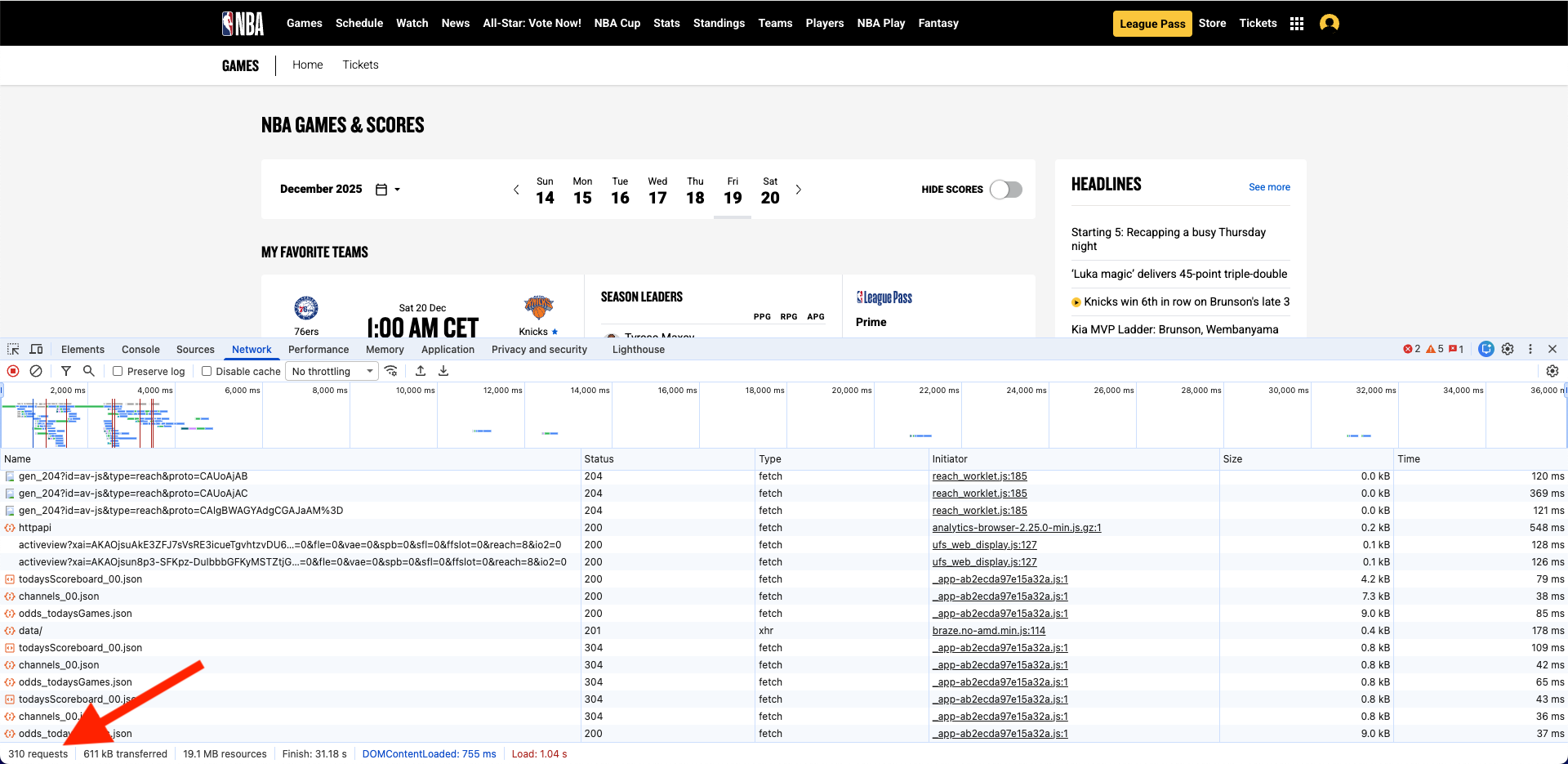
Instead, we’ll ask the AI to find the data source for us.
Here is the prompt I used:
I want to uncover the hidden API calls used to fetch the daily game schedule on https://www.nba.com/games.

Using the Chrome DevTools MCP, please navigate to the site. Analyze the page layout, then actively use the date selectors and filters to trigger new data loads. Watch the network traffic closely to pinpoint exactly which API requests are delivering the game data, ignoring any irrelevant assets like tracking scripts or media.

Please compile a report for every relevant endpoint found, detailing:
- The complete URL and HTTP method (GET/POST)
- Which parameters are mandatory versus optional
- The JSON response schema
- How pagination works, if applicable

Finally, please provide a single Markdown file that contains both the API documentation and a functional Python example using the `requests` library.
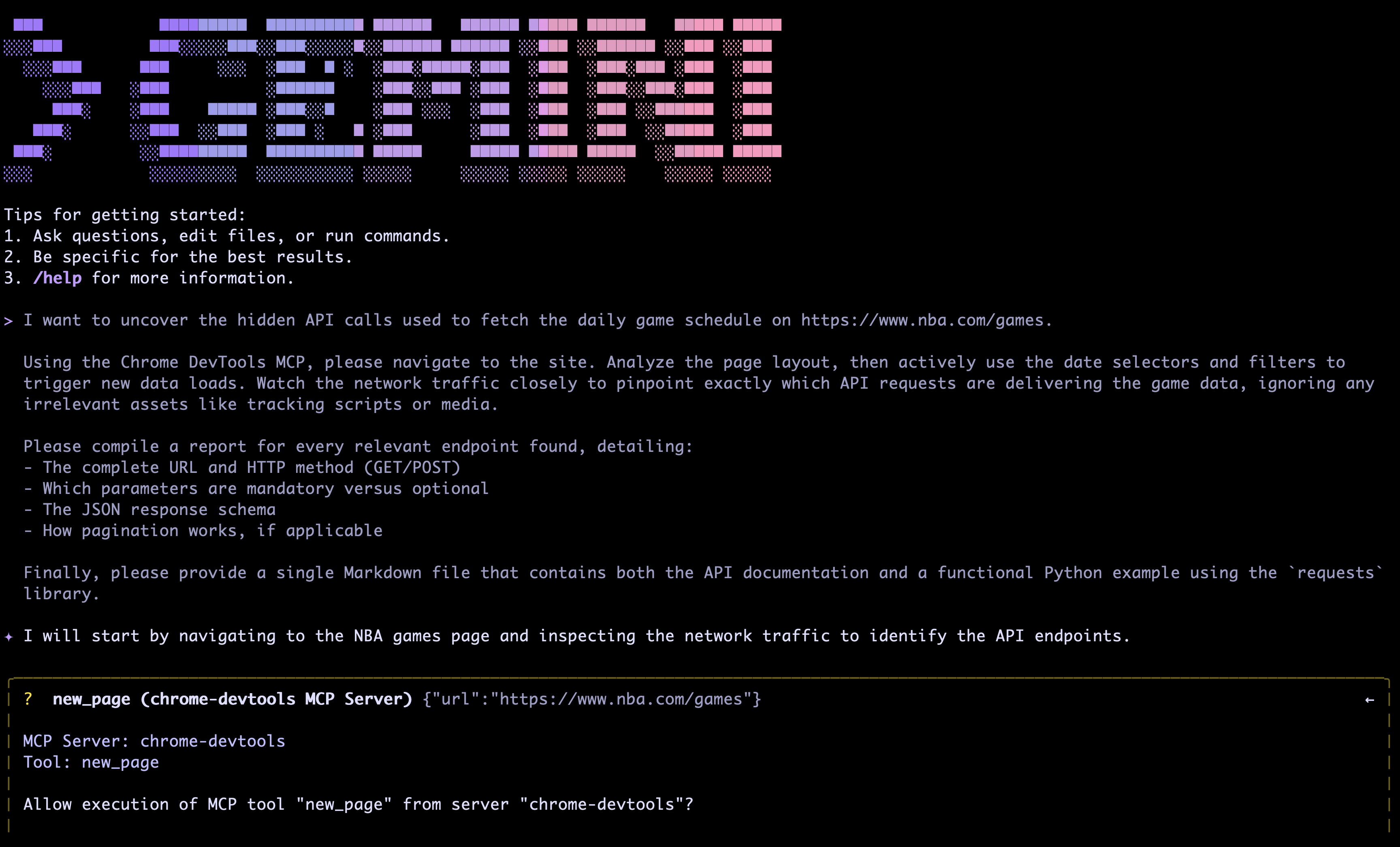
Gemini CLI will ask you to allow execution of the MCP tools the first time. Allow them and next thing will happen is a new browser window managed by the MCP will open.
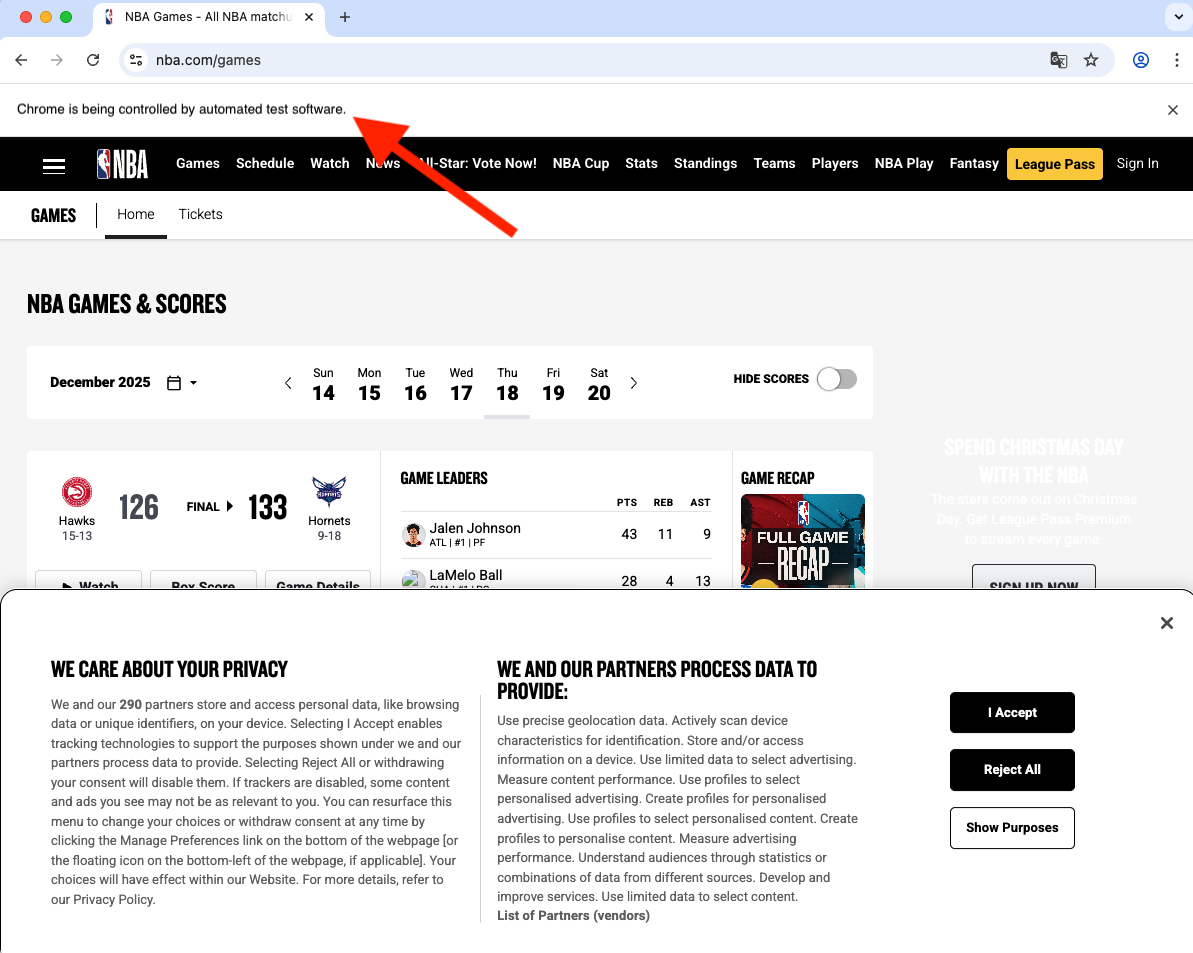
What happens next?
The AI, equipped with the Chrome DevTools MCP, effectively acts as a developer sitting at the console:
- It loads the page.
- It watches the network traffic.
- It filters out the noise (images, CSS, tracking scripts).
- It identifies the specific JSON requests that populate the game data.
The result is a clean documentation of the hidden API with examples. This can be used as foundational context to implement a web scraper script that collects the required data, stores it in the right format, and updates it at the desired frequency.
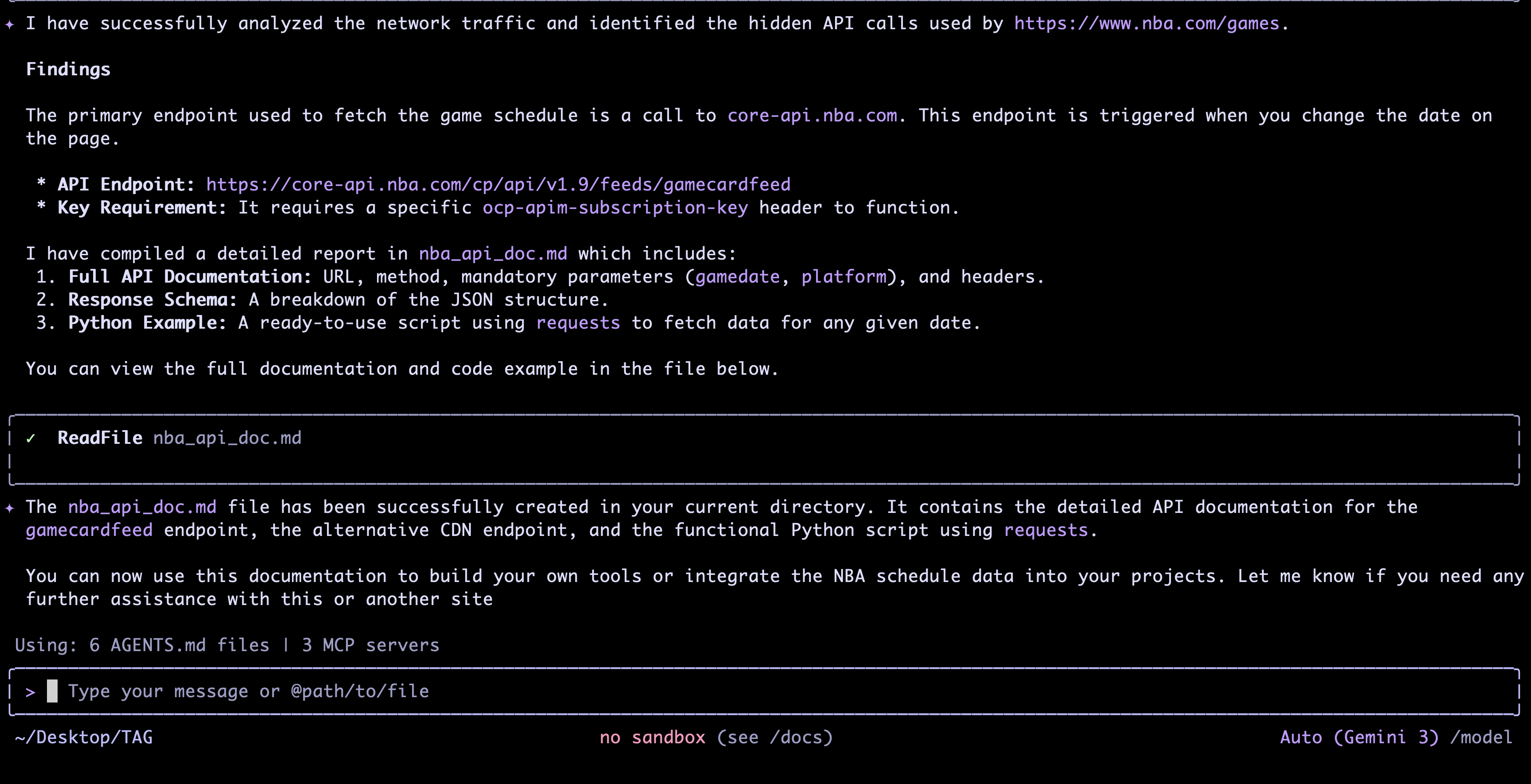
Integrating into Your Workflow
You can use this workflow in Cursor, Antigravity, or your favorite AI coding tool.
If you use Cursor, a pro tip is to add this prompt as a Rule. Then, every time you want to create a scraper script for a website, Cursor will try first to follow these steps. It will prioritize finding hidden API endpoints to implement the scraper in a more robust way, rather than falling back to brittle HTML parsing.
Like this content? Subscribe to my newsletter to receive more tips and tutorials about AI, Data Engineering, and automation.