I’ve been spending a lot of time lately with the Gemini CLI, and while I previously wrote about supercharging GitHub workflows with it, there is a new feature that fundamentally changes how we manage AI context: Agent Skills.
If you’ve ever felt like your gemini.md or agents.md files were getting too “bloated”, wasting tokens and confusing the model with too much information at once, this post is for you.
What are Agent Skills? (And how are they different from gemini.md / agents.md?)
Agent Skills are an open standard (initially brought to life by Anthropic and now adopted by the Gemini CLI) designed to solve the “context bloat” problem.
From the official Gemini CLI Agent Skills docs:
Agent Skills allow you to extend Gemini CLI with specialized expertise, procedural workflows, and task‑specific resources. Based on the Agent Skills open standard, a “skill” is a self‑contained directory that packages instructions and assets into a discoverable capability.
In the past, we used gemini.md or agents.md to feed the agent everything it might need to know. The problem? Every single prompt would send that entire file to the model, costing you money and potentially garbling the results if you were talking about too many different things at once.
The difference is “Progressive Disclosure”:
gemini.md/agents.md: Best for things the agent needs to know for every request, such as your project architecture, file locations, naming conventions, or core design patterns.- Agent Skills: These are specialized sets of instructions and assets loaded on demand. At session start, Gemini only sees the name and description of each skill. It only pulls in the full
SKILL.md+ bundled assets when it decides to activate a skill for a specific task.
This “progressive disclosure” model means you can maintain a huge library of expertise (security reviews, migration playbooks, data‑scraping workflows, etc.) without permanently occupying the context window.
Documentation & Structure
A Skill is essentially a folder located in one of the discovery tiers that Gemini CLI scans on startup:
.gemini/skills/— Workspace skills (checked into your repo and shared with the team)~/.gemini/skills/— User skills (available across all workspaces)- Extension skills — Skills bundled inside installed Gemini extensions
If multiple skills share the same name, the precedence is:
Workspace > User > Extension
The heart of any skill is a SKILL.md file that uses Markdown front matter:
---
name: docs-writer
description: Helps me write READMEs and technical documentation. Triggered by "README" or "docs".
---
# Core Mandates
- Use active voice.
- Address the user as "you".
- Load the style guide from /references/style-guide.md.
You can also include:
- a
/scriptsfolder for shell/Node/Python helpers the agent can run, - a
/referencesfolder for static documentation, - and an
/assetsfolder for templates or binaries.
Compared to a big gemini.md, this lets you keep each workflow self‑contained and reusable across tools that support the Agent Skills standard.
How to enable and activate Skills (and which Gemini CLI version you need)
Skills shipped first as an experimental feature and are now part of the stable Gemini CLI.
From the Gemini CLI changelog:
- v0.23.0 (preview) — Experimental Agent Skills support behind a flag.
- v0.24.0+ (stable) — Agent Skills docs and
/skillscommands land in the main release. - v0.25.0–0.26.0 — Built‑in skills and the
skill-creatorskill are introduced; skills are enabled by default.
My recommendation: use Gemini CLI v0.26.0 or later (current stable as of writing is v0.28.0), where Agent Skills and skill-creator are fully wired in.
1. Check / install / upgrade your Gemini CLI
# Install (or upgrade) Gemini CLI globally
npm install -g @google/gemini-cli

# Confirm version
gemini --version
If you’re on an older version and don’t see /skills in the CLI, upgrade with npm install -g @google/gemini-cli@latest.
2. Enable Agent Skills in settings (if needed)
On recent stable versions, Agent Skills are enabled by default, but if you’re on an earlier preview build you may need to toggle them on:
- Run
geminito open an interactive session. - Type
/settings. - Search for Skills or Agent Skills.
- Make sure Enable Agent Skills is set to
true.
3. How activation works at runtime
You don’t manually “import” a skill on every prompt. The flow is:
- Gemini starts a session and injects the name + description of every enabled skill from the discovery tiers.
- When your request matches a skill’s description, the model calls the internal
activate_skilltool. - The CLI surfaces a consent prompt: it shows the skill name, description, and path it will gain access to.
- If you approve, Gemini:
- Loads the full
SKILL.mdbody into the conversation. - Grants read access to the skill’s folder (scripts, references, assets).
- Prioritizes the skill’s procedural guidance for the rest of the session.
- Loads the full
From that point on, you get the feeling of a specialist agent sitting next to you, but without having to load all of that context into every prompt manually.
Managing Skills: /skills and gemini skills
You can manage skills both inside an interactive session and from your terminal.
In an interactive Gemini session
The /skills command is the main entry point:
/skills list— Show all discovered skills and whether they’re enabled./skills link <path>— Symlink skills from a local directory./skills disable <name>— Prevent a skill from being used (defaults to the user scope)./skills enable <name>— Re‑enable a disabled skill./skills reload— Rescan all discovery tiers for new/changed skills.
You can also pass --scope workspace to make changes local to the repo instead of global user settings.
From the terminal
The same functionality is exposed as a top‑level gemini skills command:
# List all discovered skills (workspace, user, and extension)
gemini skills list

# Link skills from a local directory (user scope by default)
gemini skills link /path/to/my-skills-repo

# Link the same repo into the current workspace's .gemini/skills folder
gemini skills link /path/to/my-skills-repo --scope workspace

# Install a skill from Git, a local folder, or a .skill bundle
gemini skills install https://github.com/user/repo.git
gemini skills install /path/to/local/skill
gemini skills install /path/to/local/my-expertise.skill

# Install a subdirectory as a skill (monorepo layout)
gemini skills install https://github.com/my-org/my-skills.git --path skills/frontend-design

# Target the workspace scope instead of the user scope
gemini skills install /path/to/skill --scope workspace

# Uninstall or toggle a skill
gemini skills uninstall my-expertise --scope workspace
gemini skills enable my-expertise
gemini skills disable my-expertise --scope workspace
This dual interface is nice: inside the session you can quickly inspect and reload skills; from the shell you can wire skills into dotfiles, repos, and CI.
Extension‑provided skills and installing the Google Workspace extension
Not all skills live in your .gemini/skills folders. Some are shipped as part of Gemini CLI extensions.
Extensions are MCP‑based integrations (GitHub, Figma, Google Workspace, Exa, etc.) that can:
- expose new tools (APIs, databases, crawlers),
- and bundle Agent Skills that teach the model how to use those tools effectively.
You install extensions with:
gemini extensions install <github-url>
Installing the Google Workspace extension
The demo later in this post uses the Google Workspace extension to generate a technical spec as a Google Doc.
Install it with:
gemini extensions install https://github.com/gemini-cli-extensions/workspace
Once installed, Gemini CLI gains access to your Google Drive, Docs, Sheets, and other Workspace apps.
Vercel’s skills.sh registry and npx skills
The last piece of the ecosystem is skills.sh, Vercel’s open Agent Skills directory at skills.sh.
The idea is simple:
- Agent Skills are just standardized
SKILL.md+ folder structures. - That means you can share them over GitHub and reuse them in any compliant agent (Gemini CLI, Cursor, Claude Code, Copilot, etc.).
- skills.sh provides a leaderboard + registry on top of that standard.
From the skills.sh docs:
Skills are reusable capabilities for AI agents. They provide procedural knowledge that helps agents accomplish specific tasks more effectively. Think of them as plugins or extensions that enhance what your AI agent can do.
To install a skill from the registry you use the skills CLI:
npx skills add <owner/repo[@skill]>
This:
- downloads the selected skill(s),
- installs them into the appropriate Agent Skills location for your tooling,
- and makes them available to AI agents that understand the standard.
My recommended first skill: find-skills
If you only install one thing from skills.sh, make it the find-skills skill from vercel-labs/skills.
This skill’s entire job is to help you discover and install other skills from the open ecosystem.
Install it with:
npx skills add https://github.com/vercel-labs/skills --skill find-skills
From its SKILL.md:
This skill helps you discover and install skills from the open agent skills ecosystem.
Once installed, you can use:
npx skills find [query]— to search for skills by keyword (e.g.react performance,pr review,changelog).npx skills add <owner/repo@skill>— to install what you find.
It effectively turns skills.sh into a package manager UX for Agent Skills, which pairs perfectly with Gemini CLI’s /skills and gemini skills commands.
Because skills.sh follows the same open Agent Skills spec, a skill you install for Gemini CLI can also be used by other editors and agents that speak the same language.
Security note: Vercel performs routine audits on skills in the registry, but—just like Gemini extensions—these are community artifacts. Always inspect the code and instructions, especially if a skill can run shell commands or access private data.
Demo: creating a scraping-website-skill with the built‑in skill-creator
Let’s put everything together and build a real skill with Gemini’s built‑in skill-creator skill.
The goal: a scraping-website-skill that:
- orchestrates the Chrome DevTools MCP to explore a website,
- discovers and documents hidden JSON APIs (as in my post: How to Discover Hidden APIs for Web Scraping using Chrome DevTools MCP),
- collects all functional + non‑functional requirements for a scraper,
- then generates two artifacts:
- a Google Doc with the full technical spec and an end‑to‑end example,
- a Markdown file with the same content, ready to be used as context for implementing the scraper later.
1. Prompting skill-creator
On Gemini CLI v0.26.0+, start a session and describe the skill you want:
Create a new Agent Skill named "scraping-website-skill".

This skill should:
- Use the chrome-devtools MCP to open a target URL, explore the UI, and interact with filters, pagination, and search.
- Systematically watch the Network tab for JSON APIs that power the data views.
- For each relevant API, produce a report with method, URL, query params, auth, pagination, and JSON response shape.
- Summarize all requirements for a production scraper (data model, frequency, error handling, rate limits, storage).
- Create two artifacts:
  - A Google Doc containing the full technical spec plus at least one concrete scraper example.
  - A Markdown file with the same content, optimized to be used later as context when implementing the scraper code.

Base the workflow on the process described in the ["How to Discover Hidden APIs for Web Scraping using Chrome DevTools MCP"](https://damimartinez.github.io/scraping-hidden-apis-chrome-mcp/) article, but extend it with the Google Doc + Markdown deliverables.
Gemini will recognize this as a skill creation task, activate skill-creator, and propose a new SKILL.md plus folder layout under .gemini/skills/scraping-website-skill/.
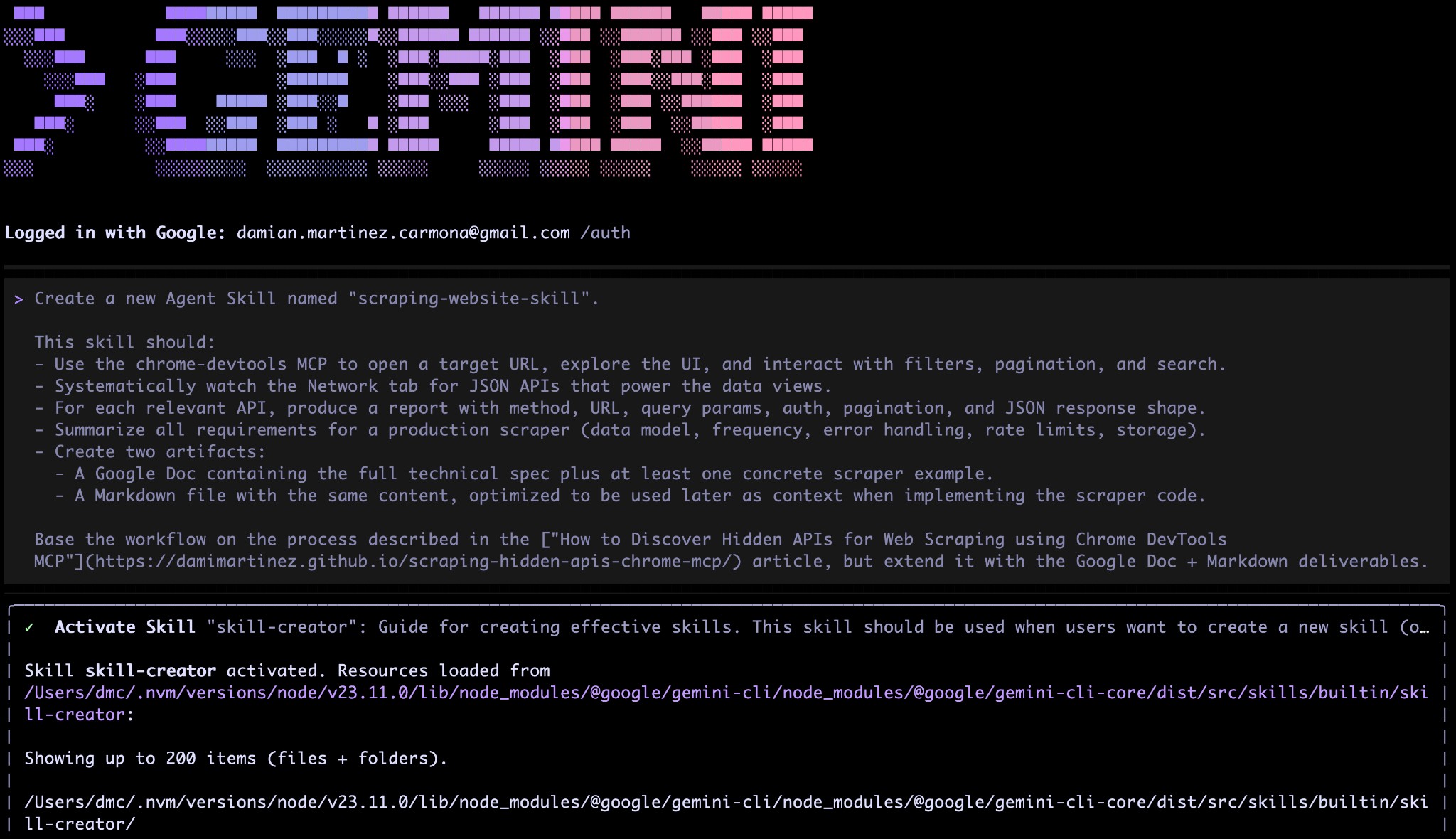
You can iterate conversationally (“add a section”, “rename this step”, etc.) until you like the result, then let it write the files to disk. Once you’re happy, the skill-creator validates the skill, packages it as a .skill file, and prompts you to install it in workspace or user scope.
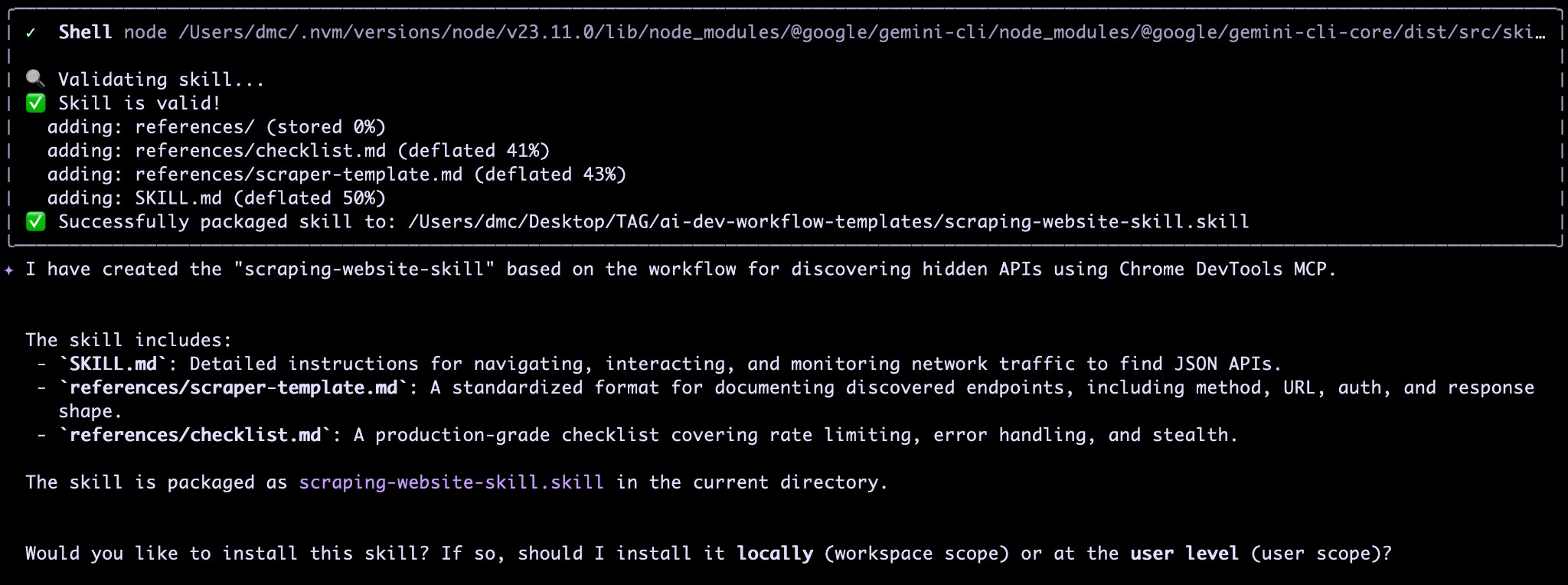
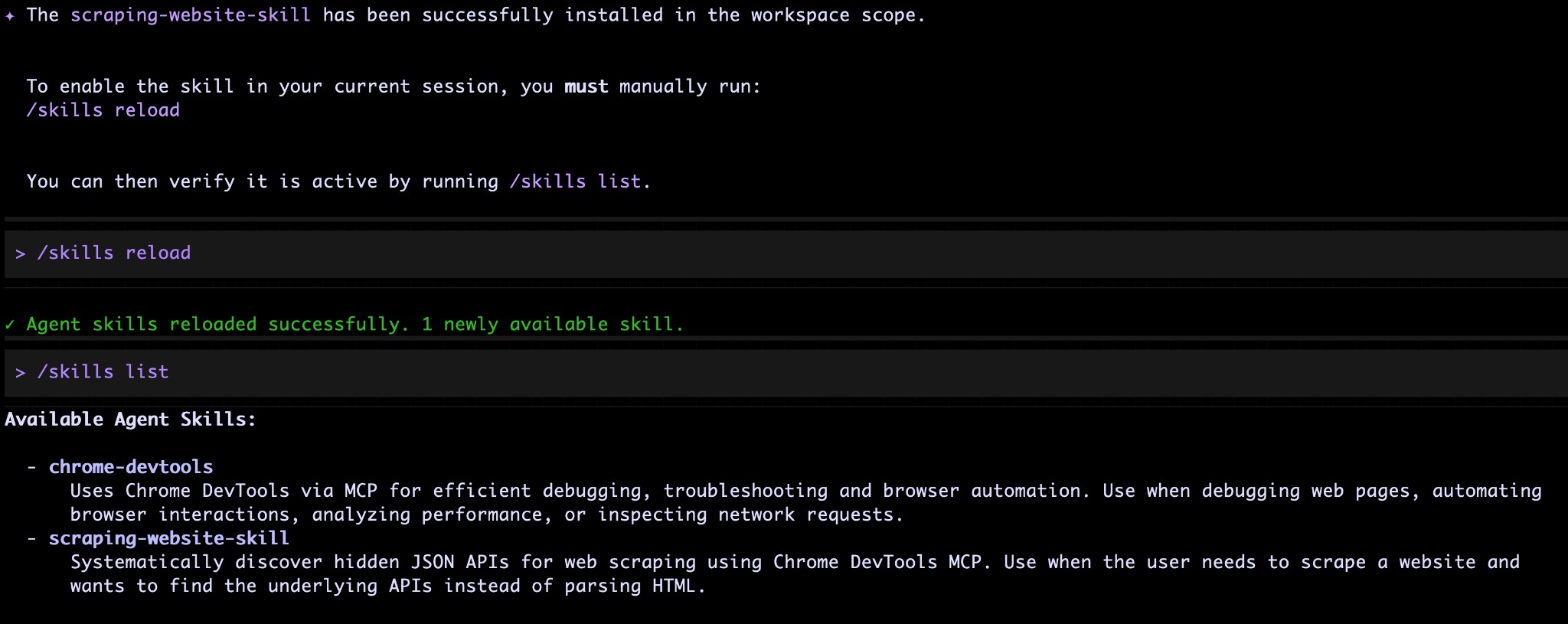
Install with gemini skills install scraping-website-skill.skill --scope workspace, run /skills reload, and verify with /skills list.
2. What skill-creator actually generates
Here’s the SKILL.md and reference files the skill-creator produced when I ran the demo:
SKILL.md:
---
name: scraping-website-skill
description: Systematically discover hidden JSON APIs for web scraping using Chrome DevTools MCP. Use when the user needs to scrape a website and wants to find the underlying APIs instead of parsing HTML.
---

# Scraping Website Skill

This skill guides you through the process of discovering hidden APIs that power modern websites, enabling more efficient and robust scraping than traditional HTML parsing.

## Workflow

### 1. Initial Exploration
- Use `chrome-devtools.navigate` to open the target URL.
- Analyze the page structure and identify elements that trigger data loads (filters, pagination, "Load More" buttons, search bars).

### 2. Monitoring Network Traffic
- Clear the network log using `chrome-devtools.clear_network_requests` (if available) or just start watching.
- Use `chrome-devtools.list_network_requests` to see ongoing requests.
- **Filter for JSON**: Focus on requests with `resourceType: "xhr"` or `"fetch"` and check their `content-type` for `application/json`.
- Ignore images, CSS, fonts, and tracking scripts (e.g., Google Analytics).

### 3. Systematic Interaction
- For each UI interaction (e.g., clicking a "Search" button):
  - Execute the interaction using `chrome-devtools.click` or `chrome-devtools.fill`.
  - Immediately call `chrome-devtools.list_network_requests` to capture the resulting API call.
  - Inspect the request details: method, URL, headers (especially `Authorization` or custom headers), and query parameters.
  - Inspect the response body to verify it contains the desired data.

### 4. Analysis and Documentation
- Document each relevant endpoint using the [scraper-template.md](references/scraper-template.md).
- Identify how pagination is handled (e.g., `offset`, `page`, `cursor`).
- Identify any mandatory headers or tokens.

### 5. Production Readiness
- Review the [checklist.md](references/checklist.md) to ensure the scraper design is robust.
- Summarize requirements for data modeling, frequency, and storage.

## Deliverables

Upon completion, you must produce:
1. **Google Doc**: A full technical specification including:
   - Discovered API documentation.
   - Production scraper requirements.
   - At least one concrete Python/Node.js scraper example.
2. **Markdown File**: An optimized version of the same content to be saved locally and used as context for future implementation steps.

## Example Request
"I want to scrape the product list from `example.com/products`. They have infinite scroll and several filters (category, price range). Help me find the API that provides the data."
The skill also bundles a references/ folder with:
scraper-template.md— A standardized format for documenting each discovered endpoint (method, URL, auth, query params, response shape, pagination). View on GitHubchecklist.md— A production-grade checklist covering retries, rate limiting, stealth (User-Agent, delays), maintenance (alerting, versioning), and storage (incremental loading, deduplication). View on GitHub
You can install this skill directly from ai-dev-workflow-templates/scraping-website-skill with:
gemini skills install https://github.com/DamiMartinez/ai-dev-workflow-templates.git --path scraping-website-skill --scope workspace
This is exactly the kind of workflow that Agent Skills are great at: it packages a complex, multi‑tool process (MCP + Workspace extensions + code generation) into a reusable, on‑demand capability that Gemini can choose to activate automatically when your request matches the skill’s name and description—for example:
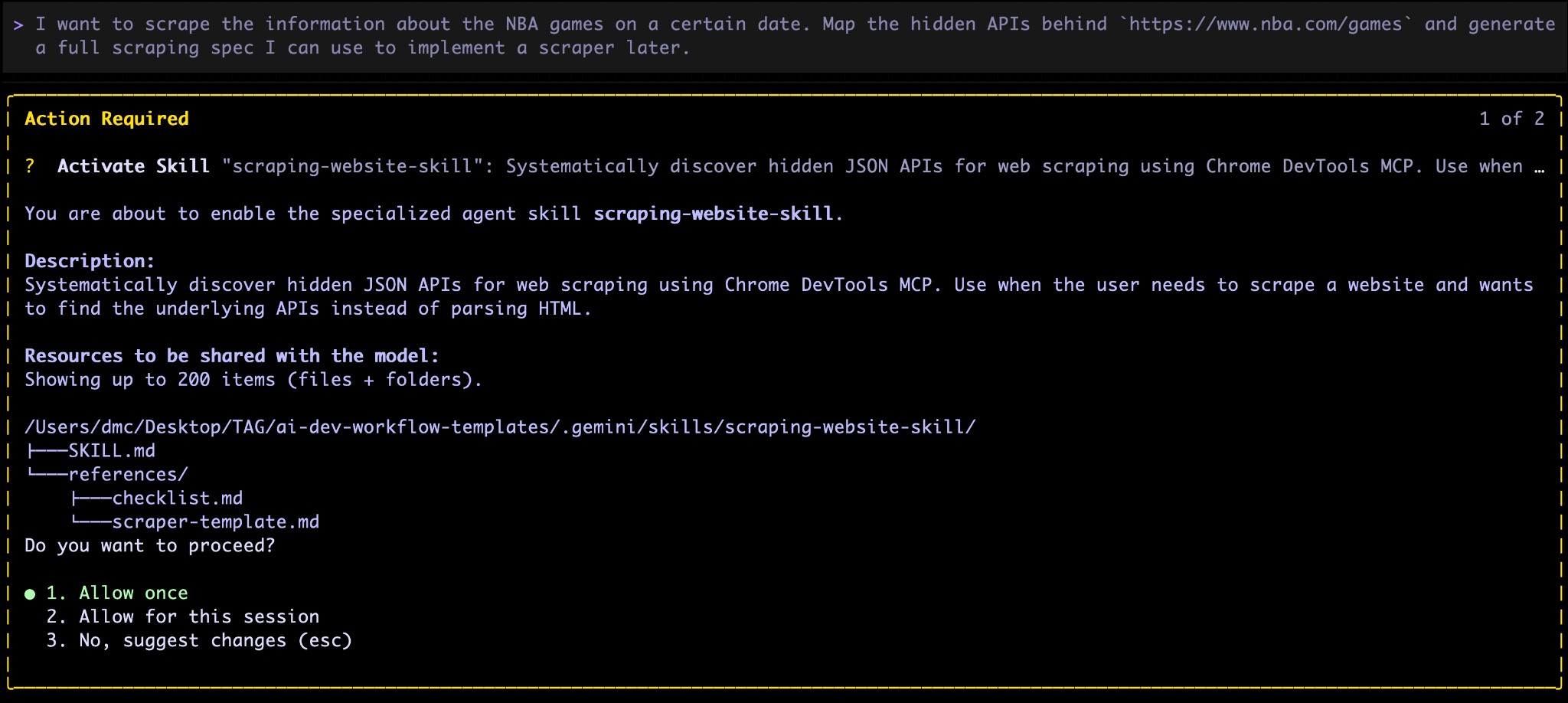
“I want to scrape the information about the NBA games on a certain date. Map the hidden APIs behind
https://www.nba.com/gamesand generate a full scraping spec I can use to implement a scraper later.”
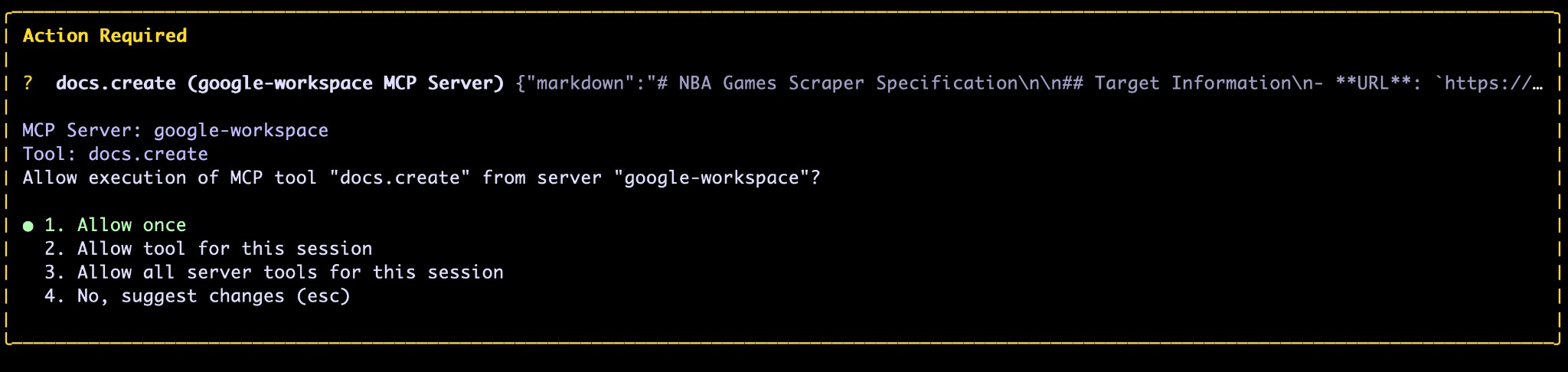
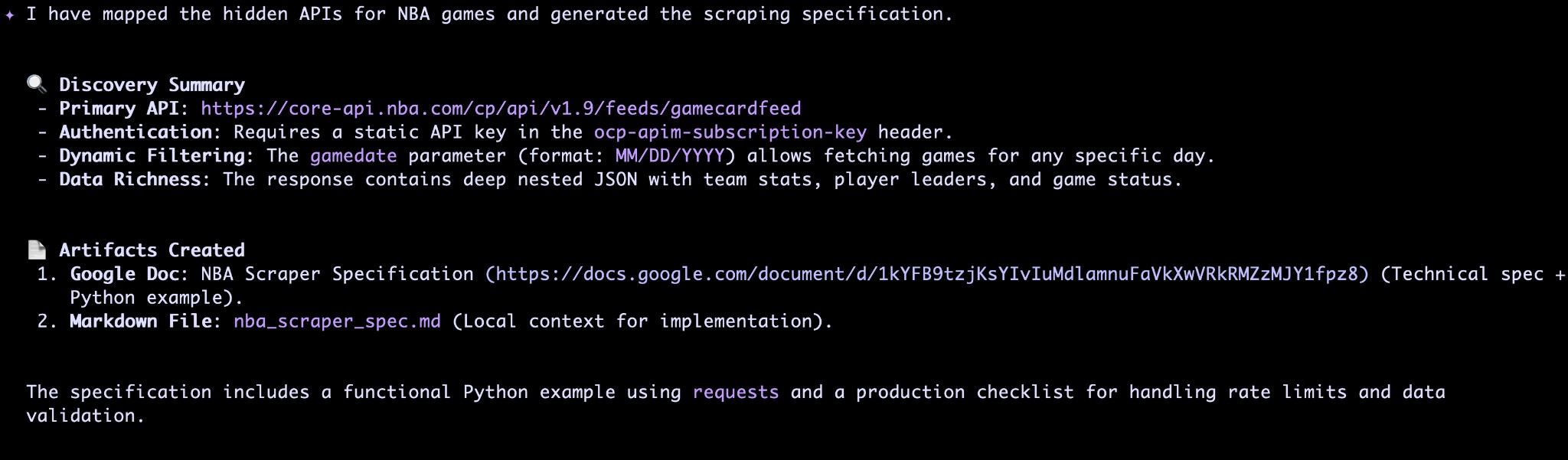
Gemini recognizes the request, prompts you to activate scraping-website-skill, and—after you approve—loads the skill’s instructions and resources. It then uses the Chrome DevTools MCP to explore the site, discovers the hidden APIs, and when ready to create the Google Doc, the Google Workspace extension surfaces an “Action Required” prompt for docs.create. Once you allow it, you get both the shareable Google Doc and a local Markdown file.
Why this matters
Agent Skills are quickly becoming the standard building block of serious AI workflows:
- They keep your global context (
gemini.md,agents.md) lean and focused. - They let you package procedural knowledge (like the hidden‑API scraping process) into reusable, shareable modules.
- They’re compatible across tools: Gemini CLI, Cursor, Antigravity, GitHub Copilot agents, and more.
- And thanks to registries like skills.sh plus first‑class support in Gemini CLI (
/skills,gemini skills), they’re finally practical to adopt in day‑to‑day work.
If you build one skill this week, make it something you do over and over—like “create a scraper spec from a website”. Once it’s in a SKILL.md, you’ll never have to re‑explain that process to your AI again.
I’ve also created a video in Spanish explaining the same concepts covered in this post.
Like this content? Subscribe to my newsletter to receive more tips and tutorials about AI, Data Engineering, and automation.